
Table of Contents
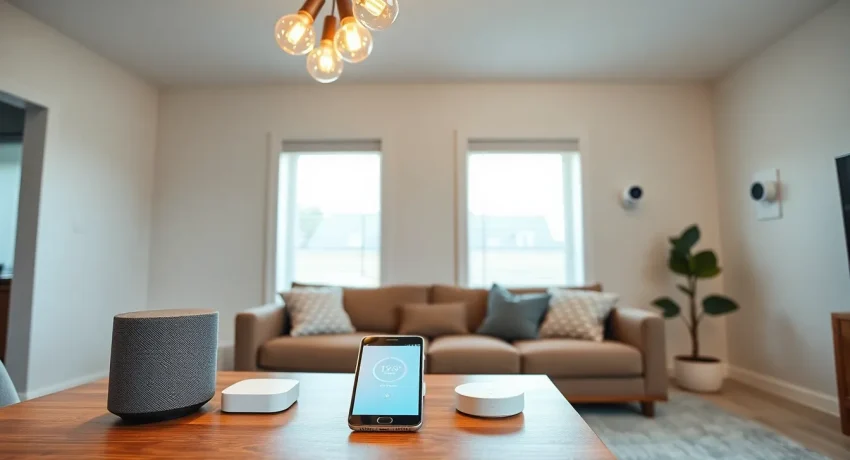
ToggleLearning how to set up smart home devices doesn’t require a tech degree. Most people can transform their living space into a connected home in just a few hours. Smart home devices include everything from voice assistants and smart thermostats to automated lights and security cameras. These gadgets communicate through Wi-Fi, Bluetooth, or specialized protocols like Zigbee and Z-Wave. The setup process follows a similar pattern across most devices, making it easier than many beginners expect. This guide walks through each step, from gathering essential equipment to troubleshooting common problems.
Key Takeaways
- Setting up smart home devices is beginner-friendly and can be completed in just a few hours with the right preparation.
- Ensure you have a stable 2.4GHz Wi-Fi network, the manufacturer’s app, and your Wi-Fi password ready before starting.
- Most smart home devices follow a similar setup pattern: power up, open the app, connect to Wi-Fi, and assign a clear name.
- Use a smart hub like SmartThings or an Echo with hub functionality if your devices use Zigbee or Z-Wave protocols.
- Organize your smart home devices by room and create scenes or routines to simplify control and enable voice commands.
- Secure your network with strong passwords and two-factor authentication to protect your connected devices from vulnerabilities.
What You Need Before Getting Started
Before unboxing that first smart home device, a few essentials need to be in place.
A Reliable Wi-Fi Network
Most smart home devices depend on a stable internet connection. A router that supports 2.4GHz is essential since many smart devices only connect to this frequency. Some newer devices work with 5GHz networks, but 2.4GHz remains the standard. Check that the Wi-Fi signal reaches all areas where devices will be installed. Dead zones cause frustrating disconnections.
A Smartphone Or Tablet
Nearly every smart home device requires a companion app for setup. Download the manufacturer’s app before starting. Create an account if prompted, this becomes the control center for all connected devices.
A Smart Hub (Sometimes)
Some smart home devices work independently with just Wi-Fi. Others need a central hub to communicate. Devices using Zigbee or Z-Wave protocols typically require a hub like Samsung SmartThings or Amazon Echo with built-in hub functionality. Check product specifications before purchasing to understand what’s needed.
The Right Passwords
This sounds basic, but many setups stall because someone forgot the Wi-Fi password. Have it ready. Also prepare any account credentials for existing smart home platforms.
Physical Requirements
Smart plugs need accessible outlets. Smart bulbs require compatible fixtures. Security cameras need mounting hardware and possibly power sources. Review installation requirements for each device ahead of time.
Step-By-Step Smart Home Device Setup
The setup process for smart home devices follows a predictable pattern. Here’s how to approach it systematically.
Step 1: Unbox And Power Up
Remove the device from packaging and connect it to power. Most smart home devices display a blinking light or enter pairing mode automatically. Wait for this indicator before proceeding.
Step 2: Open The Manufacturer’s App
Launch the app on a smartphone or tablet. Sign in or create an account. Look for options like “Add Device,” “Set Up New Device,” or a plus icon.
Step 3: Follow The On-Screen Prompts
The app guides users through device-specific steps. This usually involves selecting the device type and confirming the blinking indicator is visible.
Step 4: Connect To Wi-Fi
The app will prompt for Wi-Fi credentials. Enter the network name and password. The device connects to the home network, this can take 30 seconds to a few minutes.
Step 5: Name And Assign The Device
Give the device a clear name like “Living Room Lamp” or “Front Door Camera.” Assign it to a room if the app supports this feature. Good naming makes voice control and automation much easier later.
Connecting Devices To Your Smart Hub Or App
When using a smart hub, the process adds one extra layer. The hub acts as a translator between different smart home devices.
First, ensure the hub is set up and connected to Wi-Fi. Open the hub’s app and select the option to add a new device. Put the smart home device into pairing mode, usually by pressing a button or following app instructions. The hub searches for nearby devices and adds them to its network.
For devices connecting directly to apps like Google Home or Amazon Alexa, the process works similarly. Open the respective app, tap to add a device, and follow prompts. These platforms can control smart home devices from multiple manufacturers in one interface.
Some devices support multiple platforms. A smart plug might work with Alexa, Google Home, and Apple HomeKit simultaneously. Link accounts between platforms to expand control options.
Common Setup Issues And How To Fix Them
Even straightforward smart home device setups hit snags occasionally. Here are the most frequent problems and their solutions.
Device Won’t Enter Pairing Mode
Some devices require a factory reset before first use. Hold the reset button for 10-15 seconds until lights flash. Consult the manual for device-specific reset procedures.
Wi-Fi Connection Fails
Double-check the password, typos happen. Confirm the device supports the network frequency. Many smart home devices only work with 2.4GHz Wi-Fi. Some routers combine 2.4GHz and 5GHz under one network name, causing confusion. Create a separate 2.4GHz network if problems persist.
App Doesn’t Detect The Device
Move the smartphone closer to the device during setup. Ensure Bluetooth is enabled on the phone, many apps use Bluetooth for initial pairing even if the device uses Wi-Fi afterward. Restart both the app and the device, then try again.
Device Appears Offline After Setup
Weak Wi-Fi signal often causes this. Move the router closer or add a Wi-Fi extender. Check that the device has the latest firmware by looking in the app settings.
Voice Assistant Doesn’t Recognize Commands
Verify the skill or action is enabled in the voice assistant’s app. Check that device names are simple and distinct, “Kitchen Light” works better than “LIFX-A19-7B2C.” Re-link accounts if the connection between platforms seems broken.
Tips For Organizing And Managing Your Smart Home
A few smart home devices are easy to manage. A dozen or more can become chaotic without organization.
Group Devices By Room
Most smart home apps allow room assignments. Group all living room devices together, all bedroom devices together, and so on. This simplifies control and enables commands like “Turn off the bedroom.”
Create Scenes And Routines
Scenes activate multiple devices with one command. A “Movie Night” scene might dim lights, turn on the TV, and close smart blinds. A “Good Morning” routine could turn on lights, start the coffee maker, and announce the weather. Build these automations gradually as comfort with smart home devices grows.
Use Consistent Naming
Establish a naming convention early. Include location and device type: “Office Desk Lamp,” “Garage Door Sensor,” “Kitchen Thermostat.” Avoid abbreviations or model numbers that won’t make sense in six months.
Review Connected Devices Regularly
Old devices linger in apps even after removal. Delete unused entries to keep the interface clean. Check for firmware updates monthly, manufacturers release fixes and new features through updates.
Secure The Network
Smart home devices can be security weak points. Use strong, unique passwords for Wi-Fi and device accounts. Enable two-factor authentication where available. Consider a separate network for smart home devices to isolate them from computers and phones.